
Translate All Languages Now
Mobile Solution TechProductivity
2.7119.00 Reviews
- Version
- 1.6.8
- Installs
- 10.00M
- Age Rating
- Everyone
Screenshots

Our Review of Translate All Languages Now
 Analysis by Appyee
When I try a translation app, I am usually not looking for a long list of settings. I want to copy a sentence, understand it quickly, and move on. Translate All Languages Now is built around that simple need: it is a free productivity app from Mobile Solution Tech for translating notes, lectures, and everyday text. Its broad appeal is clear from its reach, with over ten million installs, but the average rating of 2.7 shows that the experience is not equally smooth for everyone.
My impression is that this is an app worth testing when you want a straightforward translation tool on an older Android phone or need a separate place to handle short pieces of text. It is less convincing as a complete replacement for a trusted translation service, especially if you need dependable results for important documents, study work, or sensitive conversations. The useful question is not simply whether it translates. It is whether it fits the way you actually collect, check, and reuse translated text.
Where the experience usually gets stuck
I find that the most useful place to begin is with the point where a translation stops being a quick convenience and starts needing a little care. I would use this section to separate a confusing result from a workflow snag, so the next heading can focus on checks that make the app easier to judge fairly.
The first translation is not always the real test
A basic sentence can make almost any translator look good. The harder test is what happens when the text contains a name, an abbreviation, a mixed-language phrase, or a sentence copied from a lecture slide. That is where I would slow down and judge the result instead of assuming that a fluent-looking translation is automatically correct.
With Translate All Languages Now, I would begin with a short, ordinary sentence and then try a second example that reflects my real use. Someone translating class notes should test a paragraph with technical terms. Someone using it while travelling should try a menu item, address, or short message. This gives a more realistic impression than relying on a single polished phrase.
One practical source of friction is choosing the correct language direction. “Translate all languages” sounds convenient, but a broad language list can also make selection less obvious. If the source language is set incorrectly, the output may still look plausible enough to miss the mistake. I recommend checking both sides before blaming the translation itself, particularly when the original text is short.
Copied text needs a quick visual check
When I copy text from another app, I first look at what actually arrived in the translator. Notes and web pages can carry line breaks, headings, symbols, or extra spaces that change how a sentence is interpreted. A useful habit is to remove unrelated fragments before translating. This is especially important with lecture notes, where a slide title and several bullet points may be copied as one block.
That small cleanup step is one of the less obvious ways to improve results. It does not make the app more powerful, but it gives the translation a cleaner source. If a result seems strange, I would paste only the questionable sentence again rather than repeatedly translating the entire note. Comparing a sentence in isolation can reveal whether the problem comes from surrounding text.
Why the rating deserves attention
The app has a 2.7 average from around 9,600 ratings and 119 written reviews. I would not treat that score as a final verdict, because translation quality depends heavily on language pair, text type, device conditions, and user expectations. Still, it is a clear reason to test the app with your own material before depending on it.
The rating also changes how I would recommend it. For casual phrases, quick comprehension, or a backup tool, the low commitment of a free download makes experimentation reasonable. For legal wording, medical instructions, formal applications, or anything where a mistake could cause harm, I would use a stronger established alternative and have a fluent person check the result.
Setup checks that prevent avoidable problems
Before relying on a translation away from home, I would think through the practical details that affect the whole session: how I will enter the text, whether I can read the result comfortably, and whether I have time to check it. That preparation matters especially when someone is switching between apps or working in a noisy, rushed setting; next, I would look at how to recover if the process still goes off track.
Start with the phone, not just the app
Translate All Languages Now supports Android versions from 7.0 onward, so it can work on many older devices. That is useful if you do not have a recent phone, but older hardware can make text entry and switching between apps feel slower. Before judging the translator, I would close other demanding apps, restart the phone if the interface is behaving oddly, and make sure the system itself is responding normally.
The current version is 1.6.8. Keeping the installed version current is sensible because app updates can address compatibility problems, interface bugs, or language-related issues. I would also avoid testing it for the first time in a situation where I urgently need a translation. A calm setup at home is the better moment to learn where the language controls and text fields are located.
Use a small test before a long note
My preferred setup check is a three-step test. I enter a short sentence, change the language direction, and then paste a slightly longer piece of text. This checks more than whether the keyboard works. It shows whether the workflow remains understandable when the input changes and whether I can recover easily after selecting the wrong language.
For students, I would test one paragraph from the kind of material they actually read. For travellers, I would prepare a few common phrases in advance and see how quickly they can be entered. For office use, I would test copied text from an email or note while checking that punctuation and names remain recognizable. These tests take little time and expose limitations before they become inconvenient.
Be careful with paid prompts
The app is free to install, but it includes in-app purchases ranging from $13.99 to $599.99 per item. That is a substantial range, so I would read every purchase screen carefully and avoid tapping through quickly just to reach the translation interface. If you only need occasional translations, the free experience may be enough, but I would not assume that every available function has the same cost or access conditions.
This is also why I would recommend setting a personal boundary before using it. Decide whether you are comfortable with a free tool that may present paid options, and do not enter payment details until you understand exactly what is being offered. The app’s free price is attractive, but “free” should not be confused with unlimited access to every possible part of the product.
Prepare text for the app’s strengths
The store summary specifically positions the app for notes, lectures, and text. I would take that as a clue to use it primarily for manageable written material rather than expecting it to solve every translation situation. A clean paragraph is a better starting point than a photograph full of overlapping labels, decorative fonts, or handwritten marks.
One useful workflow is to keep the original sentence beside the translated version while studying. That makes it easier to notice a missing qualifier or a word that has several meanings. I would never replace the source text with the translation immediately. Keeping both versions protects against the common mistake of forgetting what the original actually said.
Recovering when the workflow breaks
When the workflow breaks, I try to change one thing at a time rather than repeat the same action and hope for a different result. I would first shorten or clean the text, then check the language direction, which helps identify whether the problem is the input or the translation step; the next section considers cases where neither is responsible.
When nothing appears after entering text
If the result does not appear, I would first check the input itself. A blank field, unsupported-looking symbols, or text that was copied incompletely can create the impression that the translator has failed. Re-entering a short sentence is a better diagnostic step than repeatedly pressing the same control.
Next, I would check the selected language pair and try a familiar phrase. If that works, the issue is probably related to the original text rather than the entire app. Switching briefly to another app and returning can also help distinguish an interface delay from a problem with the source material. These are simple steps, but they prevent a lot of unnecessary reinstalling.
When the output sounds wrong
A poor translation is not always fixed by trying the same sentence again. I would divide a long paragraph into smaller sections, remove headings and unrelated fragments, and check names separately. Long notes often contain incomplete sentences, and a translator has less context when the source is made of fragments.
Another useful technique is reverse checking. I would translate the result back into the original language only as a rough warning signal, not as proof of correctness. If the meaning changes noticeably, I would inspect the original and seek a second translation. Reverse checking is particularly helpful for catching omitted negatives, changed quantities, or a polite phrase that has become too direct.
When copying creates messy results
Copied text can include invisible formatting that is difficult to notice on a phone. If the output looks disorganized, I would paste the text into a plain note first, remove repeated line breaks, and then send the cleaned version to the translator. This is a practical workaround for lecture material and web pages where the visual layout does not match the actual reading order.
I would also avoid feeding an entire document into a quick translation workflow. Breaking it into meaningful sections makes it easier to compare the result with the original and correct one doubtful sentence without losing the rest. The trade-off is that this takes longer, but the extra control is worthwhile when accuracy matters more than speed.
When the app is not the cause
A translation can feel wrong even when the app has handled the text as expected, because wording, context, and specialist terms may not map neatly between languages. I would treat the output as a starting point, not a verdict, and use the following section to consider when a different tool or a person is the more sensible choice.
Language ambiguity can look like an app error
Many words do not have one perfect translation. A short phrase can change meaning depending on whether it appears in a conversation, a technical note, or a formal message. If the result feels awkward, I would ask whether the original sentence was ambiguous before deciding that the app failed.
Names, local expressions, and abbreviations deserve special care. I would leave a proper name unchanged when appropriate and check specialist vocabulary against a dictionary or subject reference. A translation app can help reveal the general meaning while still needing human judgment for the detail that matters.
Connectivity and device conditions matter
If the app responds slowly, I would test another ordinary app on the same phone and connection. If several apps are struggling, the translator may simply be one visible symptom of a broader device or network problem. Restarting the phone, moving to a more stable connection, and trying a smaller piece of text are reasonable first steps.
I would not interpret one failed attempt as evidence that every language pair is unreliable. Instead, I would repeat the test with a simple sentence and record what changes: the language direction, text length, or connection. That small comparison gives a much clearer picture than guessing.
Privacy and importance should shape your choice
For personal notes, I would still avoid pasting passwords, financial details, private medical information, or confidential work material into any translation service unless I had checked its handling practices and accepted the risk. A free productivity app is convenient, but convenience is not a reason to expose information that could cause trouble if mishandled.
I would also separate understanding from publishing. Translate All Languages Now can be useful for getting the gist of a message or organizing study notes. That does not mean the output is ready to send to a client, submit as coursework, or use in an official process. For those situations, a professional translator or fluent reviewer is the better option.
How it compares with familiar alternatives
The usual alternatives are built-in phone translation tools, major dedicated translation services, dictionaries, and human help. Translate All Languages Now makes the most sense when you want a separate productivity app for quick written input and your expectations are modest. Its compatibility with Android 7.0 or later may also appeal to people using an older handset.
A major translation service is usually the safer choice when you need a mature workflow, strong language-specific context, or a feature that you already know well. A dictionary is better when you want to study one word, compare definitions, and understand usage rather than receive a complete sentence. Human assistance remains superior for tone, cultural meaning, and high-stakes writing.
The app’s key trade-off is convenience against confidence. It may be enough for a traveller checking a short phrase or a student trying to understand a foreign paragraph. It is not the tool I would choose as the only authority for an important translation. The low average rating reinforces that cautious position, while the large install base suggests that many people are at least willing to try it for everyday needs.
My practical verdict
After looking at the complete workflow, I see Translate All Languages Now as a useful experiment rather than an automatic recommendation for everyone. It is free, aimed at productivity, rated for Everyone, and developed by Mobile Solution Tech. Those details make it approachable for casual users, students, and people with older Android devices.
My strongest advice is to test it with your own language pair before trusting it with important text. Use a short sentence, then a realistic paragraph, and compare the output with the original. Clean copied notes, verify the language direction, watch for paid prompts, and keep the source text beside the translation. Those habits improve the usefulness of the app more than repeatedly pressing translate.
I would recommend giving it a chance if your goal is quick understanding of ordinary written material and you are comfortable checking the result yourself. I would skip it as a primary solution if you need polished professional translations, reliable handling of sensitive information, or a consistently high-confidence result. In my view, its best role is a convenient backup for simple text, provided you treat the output as assistance rather than unquestionable truth.
Verdict
Strengths of Translate All Languages Now
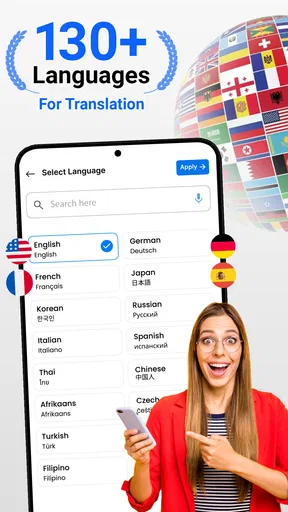
- Supports many languages for quick translations on the go.
- Simple interface makes common translation tasks easy to start.
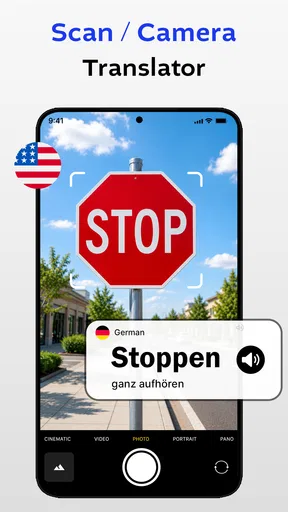
- Useful for translating short messages, signs, and everyday phrases.
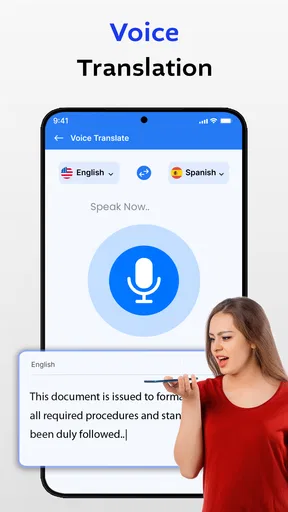
- Voice input can speed up translations when typing is inconvenient.
- Helpful travel companion for basic communication abroad.
Limitations of Translate All Languages Now
- Translation quality can vary greatly between language pairs.
- Some features may require an internet connection to work properly.
- Voice recognition may struggle with accents or background noise.
- Free usage may include ads or limits on certain translation tools.
- Context, slang, and technical wording are not always translated accurately.
Similar Picks in This Category
View All
Google Calendar
Google LLC4.6

Google Drive
Google LLC4.3

Google Assistant
Google LLC3.9

Microsoft OneDrive
Microsoft Corporation4.6

Samsung Calendar
Samsung Electronics Co., Ltd.4.1

Microsoft OneNote: Save Notes
Microsoft Corporation4.6
Frequently Asked Questions
What is Translate All Languages Now, and what can it do?
Translate All Languages Now is a mobile translation app designed to help users understand and communicate in different languages. It generally supports text translation and may include useful tools such as voice input, spoken translations, camera-based text recognition, or phrase assistance, depending on the device and app version. It can be helpful for travel, study, messaging, and everyday conversations, although translation quality may vary by language and context.
Does Translate All Languages Now work without an internet connection?
Before downloading, users should check whether offline translation is supported for their preferred languages. Many translation features rely on an internet connection because the app processes requests through online language services. Without connectivity, some functions may be unavailable or limited. If you plan to use it while traveling, confirm the offline options, download any required language data in advance, and remember that offline results may be less accurate than online translations.
How accurate are the translations in Translate All Languages Now?
The app can be useful for common words, short sentences, travel phrases, and basic conversations, but it should not be treated as a professional translator in every situation. Accuracy may depend on the language pair, spelling, accents, sentence structure, and surrounding context. Idioms, slang, technical terminology, and humor can produce imperfect results, so important legal, medical, academic, or business content should be checked by a qualified human translator.
Does Translate All Languages Now require payment or include advertisements?
Translate All Languages Now may be free to install while offering advertisements, premium features, subscriptions, or in-app purchases. The exact pricing and available tools can change between app versions, operating systems, and regions. Before confirming a purchase, review the store listing and the subscription screen carefully, including billing frequency, trial conditions, and cancellation rules. Users who only need occasional translations should compare the free features with the premium benefits.
Is Translate All Languages Now safe to use with private or sensitive information?
You should avoid entering confidential information unless you have reviewed the app’s privacy policy and understand how translations are processed and stored. Text, voice recordings, images, or usage data may be sent to online services to provide translation features. Do not use the app for passwords, private documents, financial details, or sensitive personal conversations without checking its permissions, data practices, developer information, and available privacy controls first.
